
Technical issues are envitable for all websites now and again, so if you are experiencing issues such as our academy not loading correctly, freezing, pages not displaying or videos not playing, before raising a support request, please try the following troubleshooting methods first:
Clear your browser cache
Visit this article for advice on how to clear the cache and cookies for the following browsers:
Google Chrome
Mozilla Firefox
Safari for macOS
Microsoft Edge
Disable browser extensions
On occasion, certain browser extensions such as ad blockers or privacy masks can block videos from displaying or playing. If you're unsure how to do this for your particular browser, just ask ChatGPT for free.
Check your computers' anti-virus and firewall settings
Some anti-virus, anti-malware and firewall software can be overly protective and block certain content as part of its default settings. Check your settings, but if you still require help, please reach out to your software provider for assistance in adding our academy's domain taoistwellness.online to your whitelist.
Flush DNS
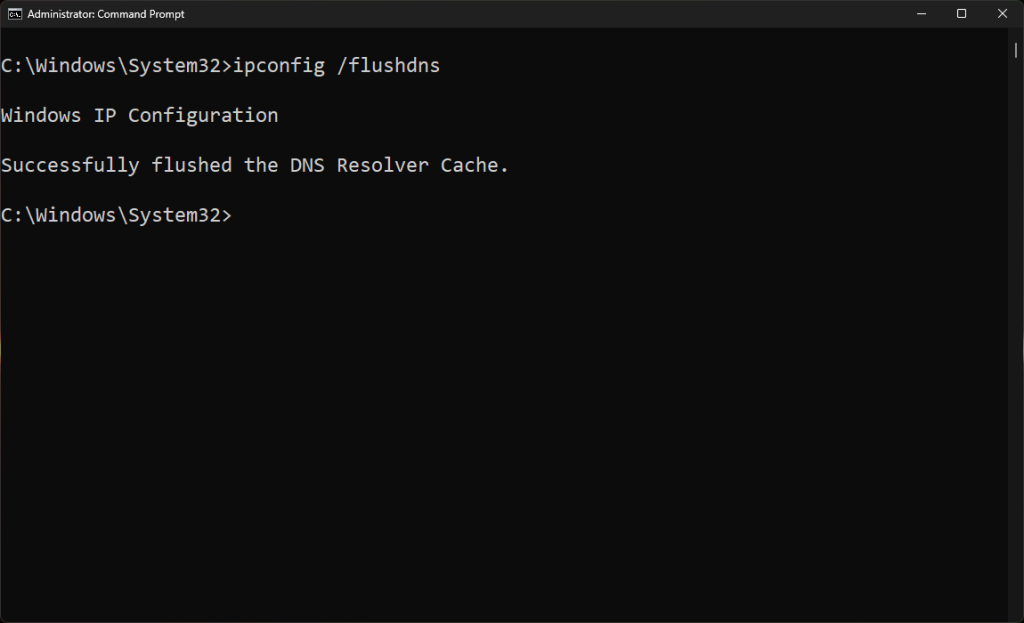
On Windows 10 and 11
1. Click on Start, then search for Command Prompt. Right-click it and select “Run as Administrator.”
2. Once the Command Prompt is open, type
ipconfig /flushdnsand press Enter.3. A message will appear confirming that the DNS Resolver Cache was flushed.
On macOS
Press cmd + space to open Spotlight Search.
Type Terminal and open the application (you can also find it in the Other section in the Launchpad).
Type the following command:
sudo dscacheutil -flushcache; sudo killall -HUP mDNSResponder.Enter your administrator password when prompted. Once you do, you will receive confirmation that the DNS cache has been flushed.
Note: The command can vary depending on your macOS version. Here’s how to check your macOS version:
Click on the Apple menu in the upper-left corner of your screen.
Select About This Mac.
Depending on your macOS version, use the appropriate command:
Monterey, Big Sur, Catalina:
sudo dscacheutil -flushcache; sudo killall -HUP mDNSResponderMojave, High Sierra, Sierra, El Capitan, Mavericks, Mountain Lion, Lion:
sudo killall -HUP mDNSResponder
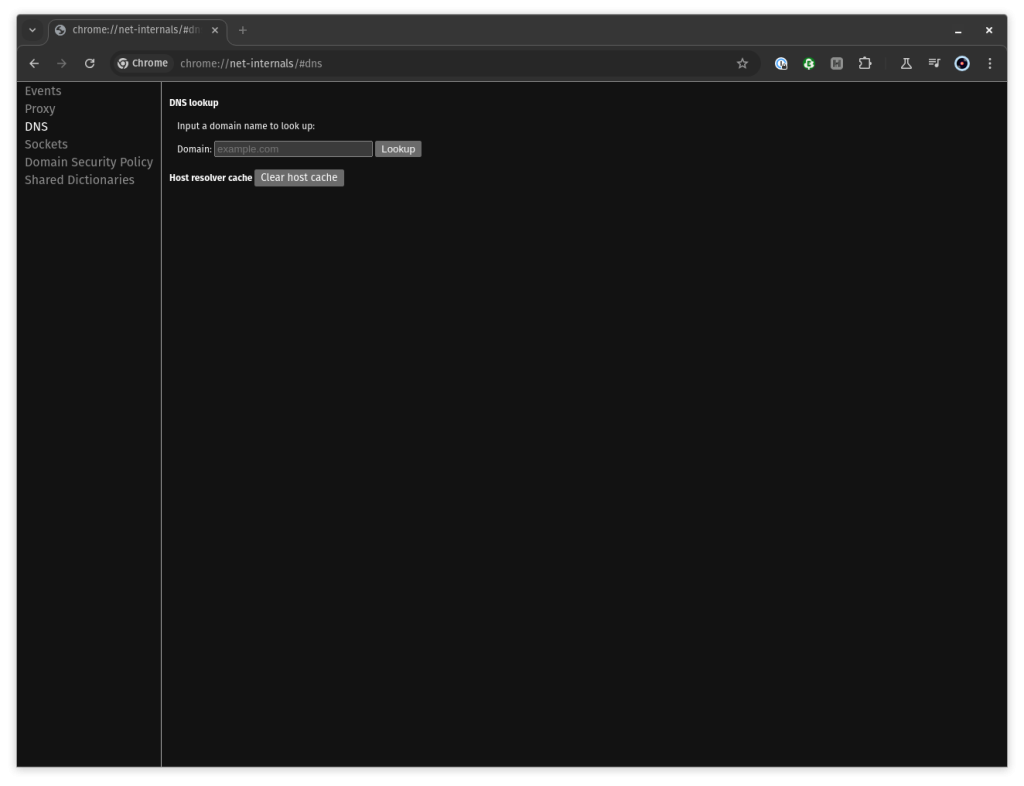
In Google Chrome
Type
chrome://net-internals/#dnsin the address bar and press Enter.Click the Clear Host Cache button to flush the browser’s DNS cache